
Vendor Labels
This process will generate labels for vendors based on the selections entered.
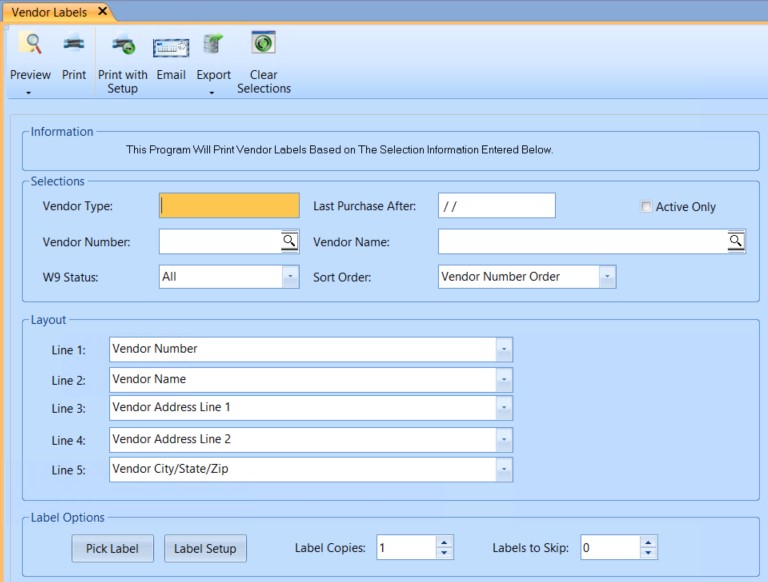
 NAVIGATION: LISTS menu > Vendor Labels
- Vendor Type: Enter a Vendor Type to pull labels by, or leave blank to pull regardless of what is in vendor type in the Vendor Master.
- NOTE: If Vendor Types have been setup in Global Table Maintenance and the descriptions are selected as the vendor Type in the Vendor Master; the Code, not the description is used in this report.
- Last Purchase After
- Enter a date in a mmddyy or mmddyyyy format.
- Vendor labels will not print for any vendor that you purchased from prior to the date entered.
- To print labels for vendors regardless of purchase dates, leave this field blank.
- Active Only: Place a checkmark in this field to constrain the vendor labels to vendors whose status is set to active in the vendor master.
- Vendor Number or Vendor Name
- Select a vendor by number or name to print labels for that vendor only.
- Leave other selections blank for best results
- W9 Status: Select one of the following options for the list. Other options may be left blank.
- All
- Returned
- Not Returned
- Layout: Select the vendor information to print for each of the five (5) lines from the following:
- Blank or Not used
- Vendor Number
- Vendor Name
- Vendor Address Line 1
- Vendor Address Line 2
- Vendor City/State/Zip
- Vendor 1099 Name
- Vendor 1099 Address Line 1
- Vendor 1099 Address Line 2
- Vendor 1099 City/State/Zip
- Vendor Contract Name
- Vendor Contract Address Line 1
- Vendor Contract Address Line 2
- Vendor Contract City/State/Zip
- Pick Label
- Select a label style from manufacturer information.
- If you need to design your own, it is done using Label Setup.
- Label Setup: Design a label style by entering in margin, pitch and other criteria for the label and then click ok.
- Label Copies: Enter the number of labels you want to print for each vendor.
- Labels to Skip: If you are printing labels on a partially used sheet or if you do not want to print on some of the labels, enter the number of labels that are missing/used or that you do not want to print on.
- Print, preview, or save the report (see Report Preview, Print and Save Options).
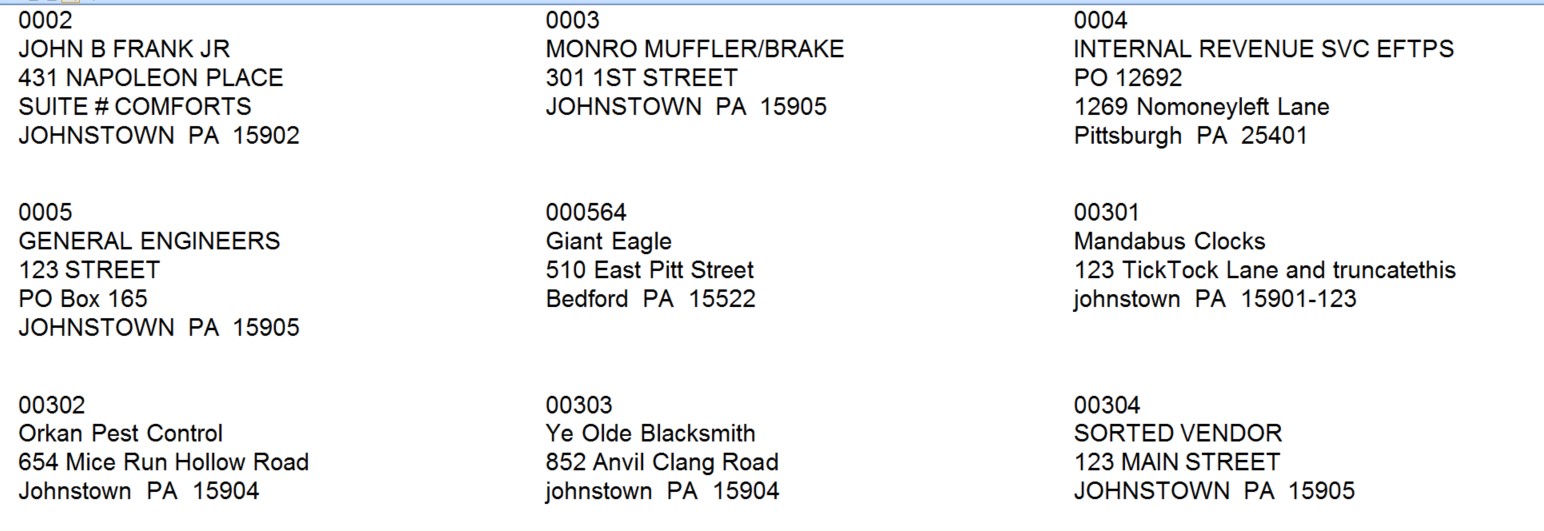
- SAMPLE
12/2023